
Here’s a step-by-step guide to start copying your first Futures trade on Bybit.
Copy a Master Trader
View Your Positions
Edit Your Copy Trade Settings
Switch Copy Mode, Margin Mode, and Leverage Settings
Increase or Reduce Investment Amount
Set TP/SL
Close Your Positions
Cancel Copying Your Master Trader
Copy a Master Trader
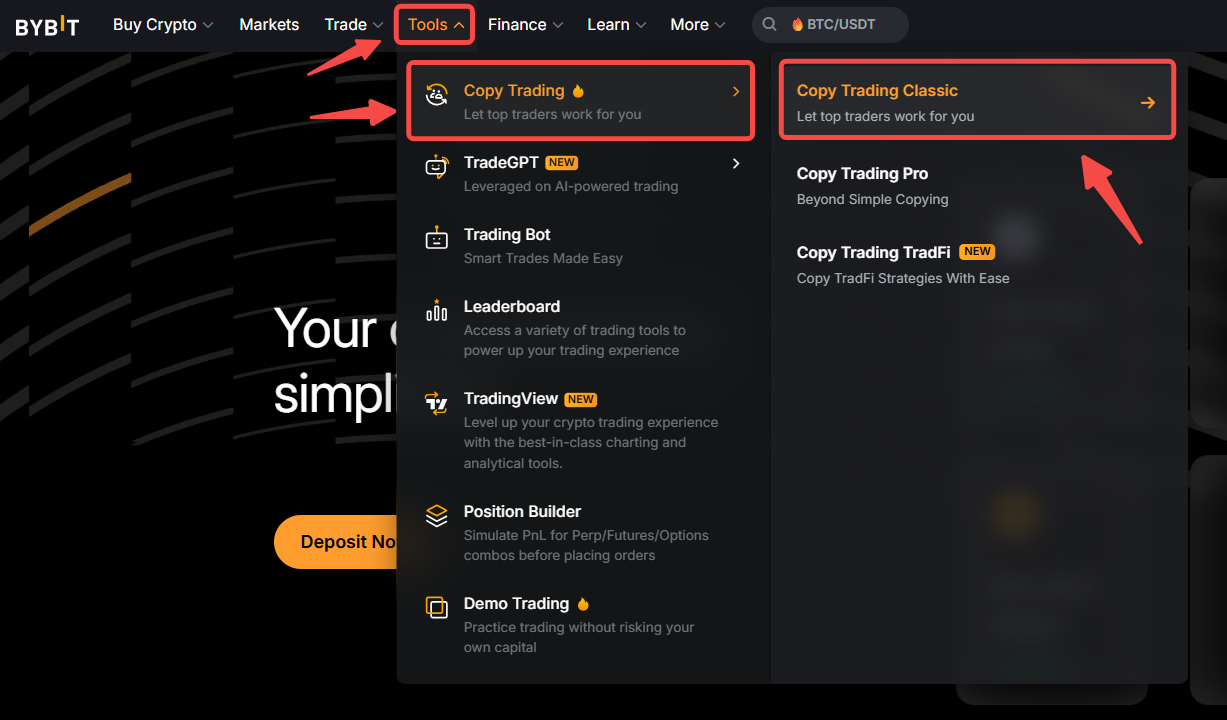
Step 1: Please click on Tools → Copy Trading in the navigation bar to enter the Copy Trading Classic page.
Step 2: Click on Copy at the bottom of the Master Trader’s card whom you want to follow to enter the Copy Trading Classic settings page. Followers can copy up to 10 Master Traders simultaneously.
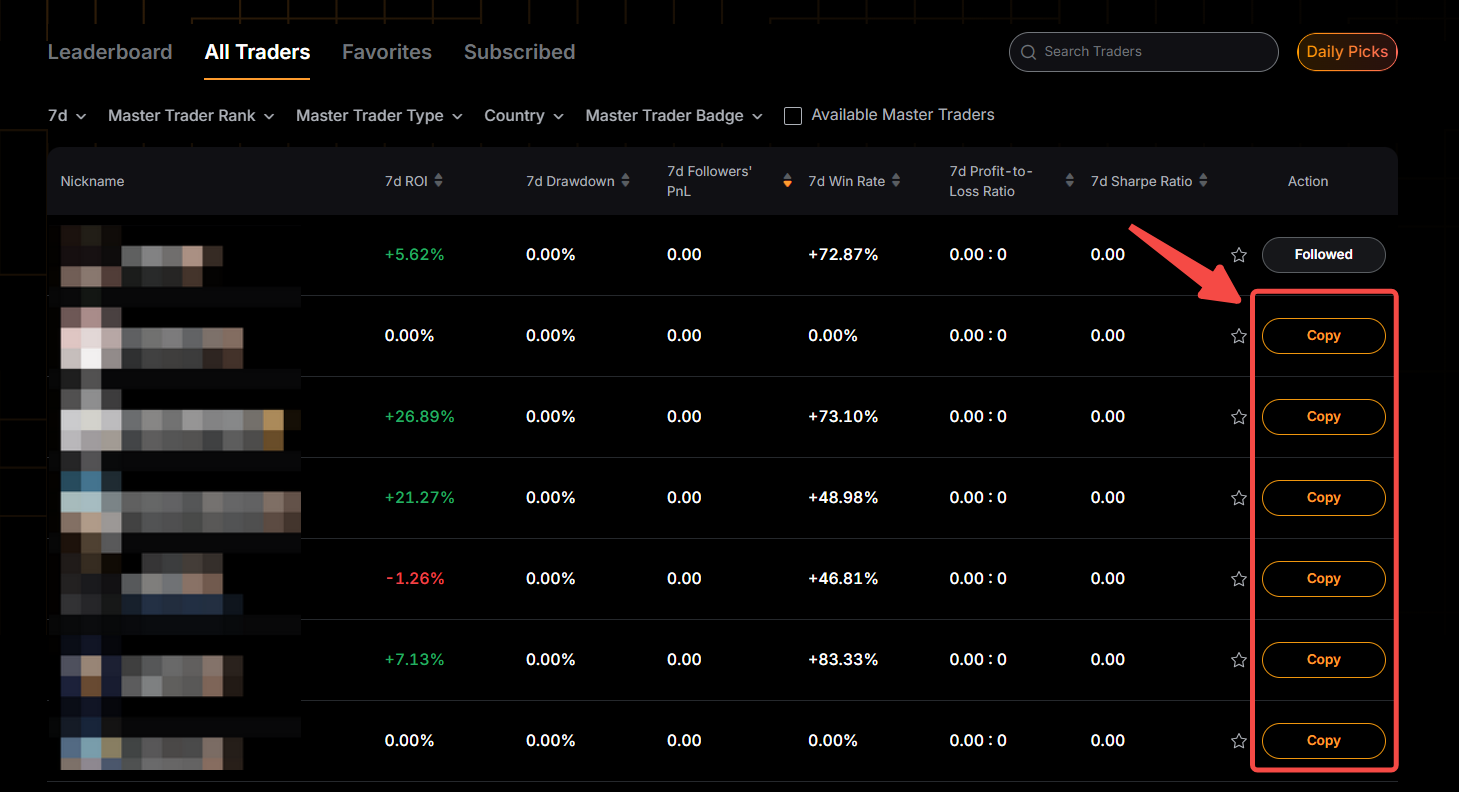
You can click on the Master Trader's card to access the portfolio page and view more comprehensive trading performance data. For more information, please visit this page.
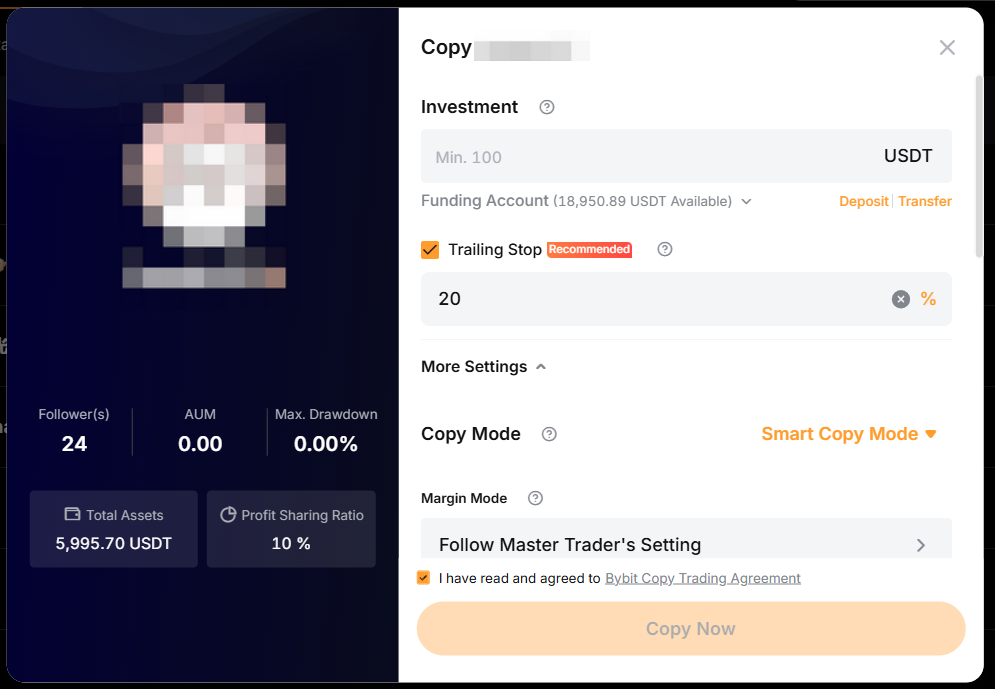
Step 3: Create your Copy Trades by setting your Investment Amount. The minimum investment amount is 100 USDT. Please note that your Master Trader can set a higher minimum investment amount required for copying, and you will be able to see the amount stated in the column.
Step 4: Click on More Settings to configure additional trade settings for copying.
- You will need to select your copy mode and set up the trading parameters (if required).
- The copy mode cannot be switched once selected. If you wish to change the copy mode, you have to cancel copying the Master Trader first and copy again before you can change it.
- All settings configured under USDT Perpetual Trades apply solely to USDT Perpetual contract trading.
- Only trades placed after you start copying the Master Trader will be copied.
- Please note that if the Master Trader has enabled Forced Sync under SyncMaster, customization of parameters under More Settings will not be available. You will be able to see a SyncMaster is now enabled status on the parameter settings window.
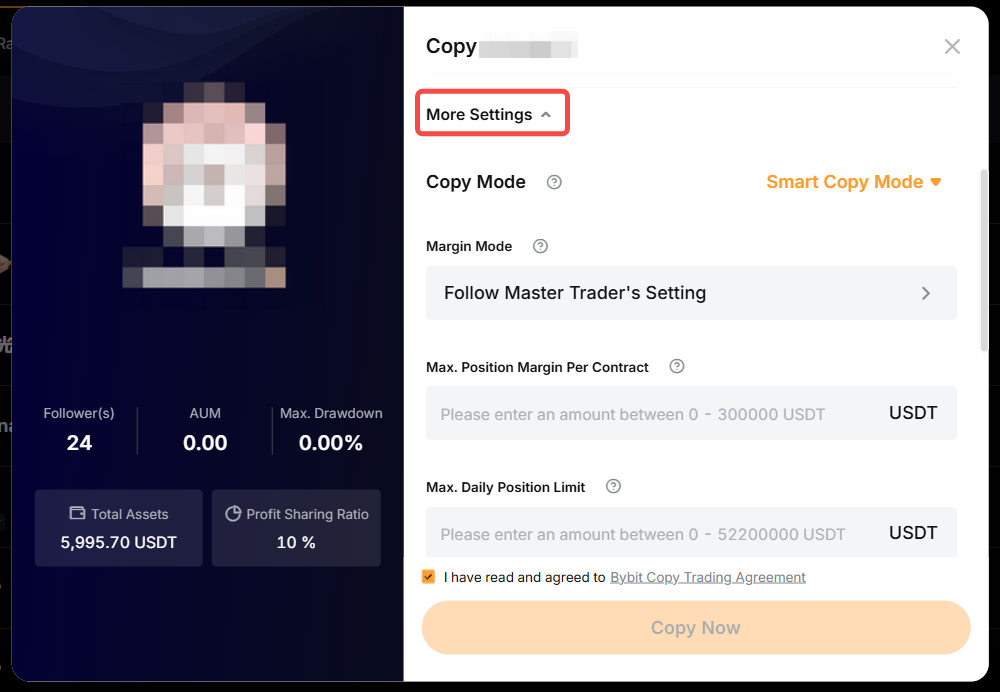
For a more detailed explanation of each Copy Mode and Parameter Settings, please visit here.
Step 5: Once the parameter settings are confirmed, please check the Agreement Acknowledgment Box and click on Copy Now.
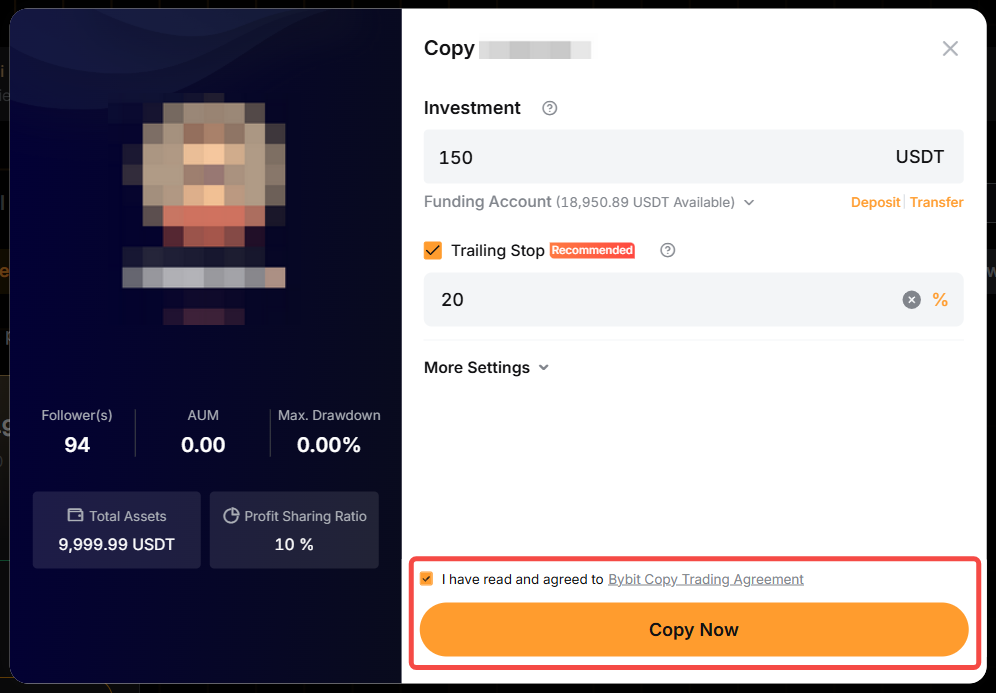
In this window, you can also see the Master Trader’s performance and the profit sharing ratio. The profit sharing ratio varies according to the Master Trader’s level. If the profit sharing ratio is 10%, it means that Followers will need to share 10% of their profit earned under this Master Trader, with the Master Trader.
Congratulations! You have successfully followed a Master Trader.
View Your Positions
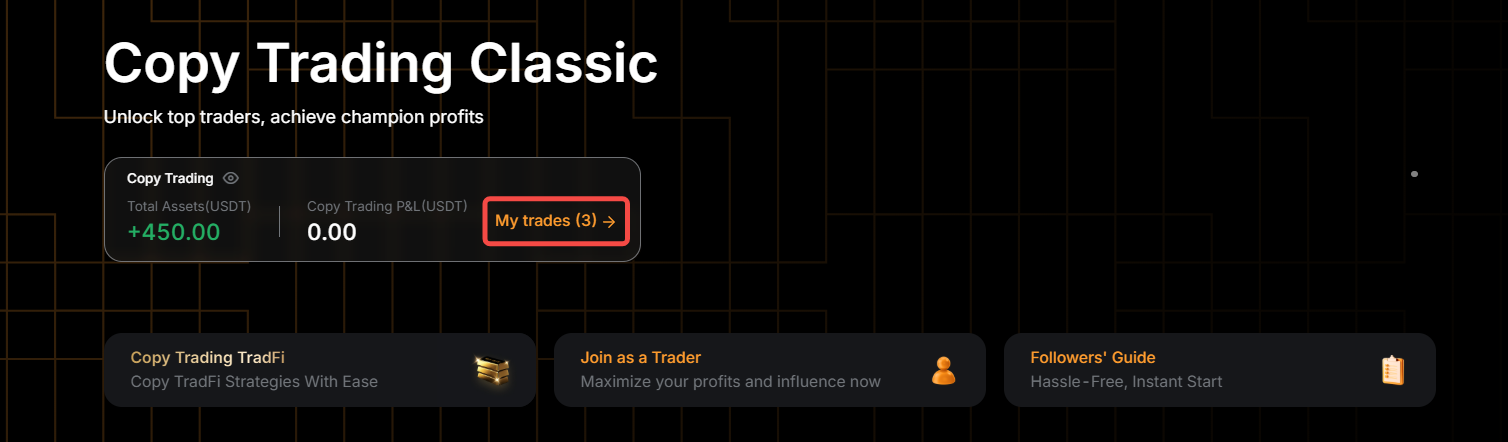
Step 1: To view your copied positions, click on My Trades on the Copy Trading Classic page to enter User Center (Follower).
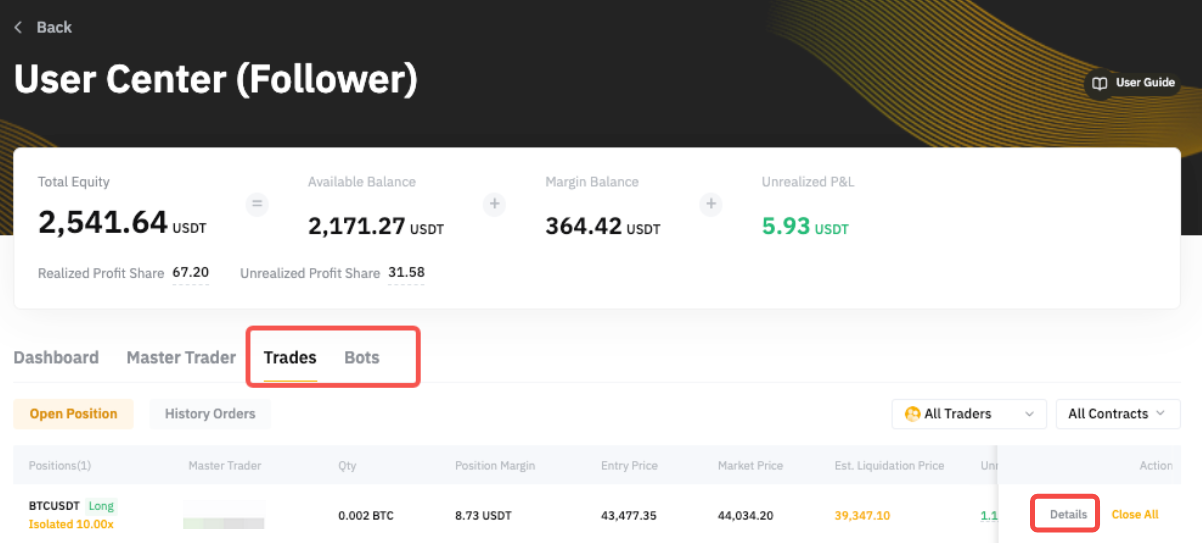
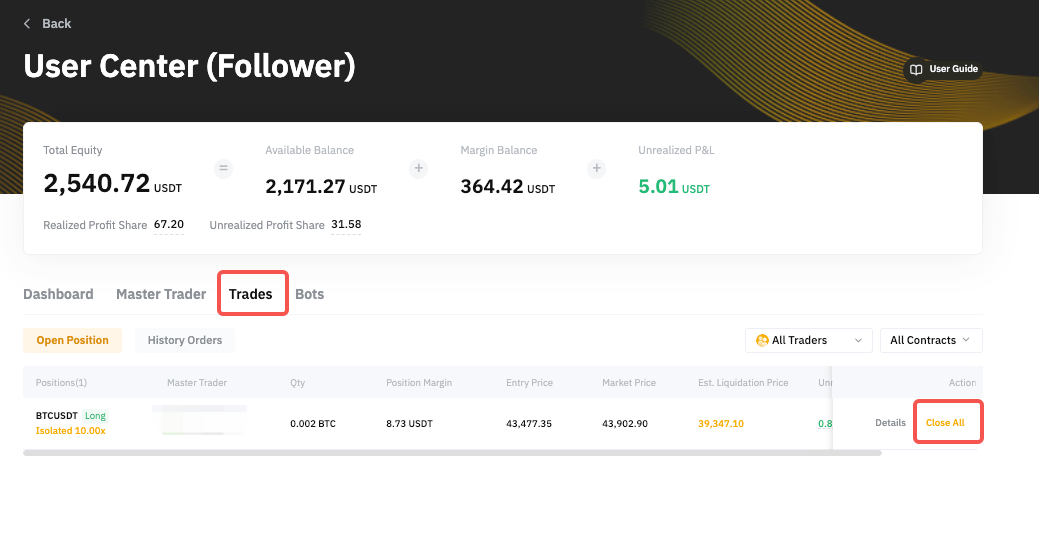
Step 2: Go to the Trades tab to view all your current copied USDT Perpetual trades. Click on Details to see each copied order for the position of the respective trading pair.
Edit Your Copy Trade Settings
You can adjust the parameters of your copy trade by following the steps below.
Step 1: Please click on My Trades to enter the User Center (Follower).
Step 2: Click on the Details of your respective Master Trader.
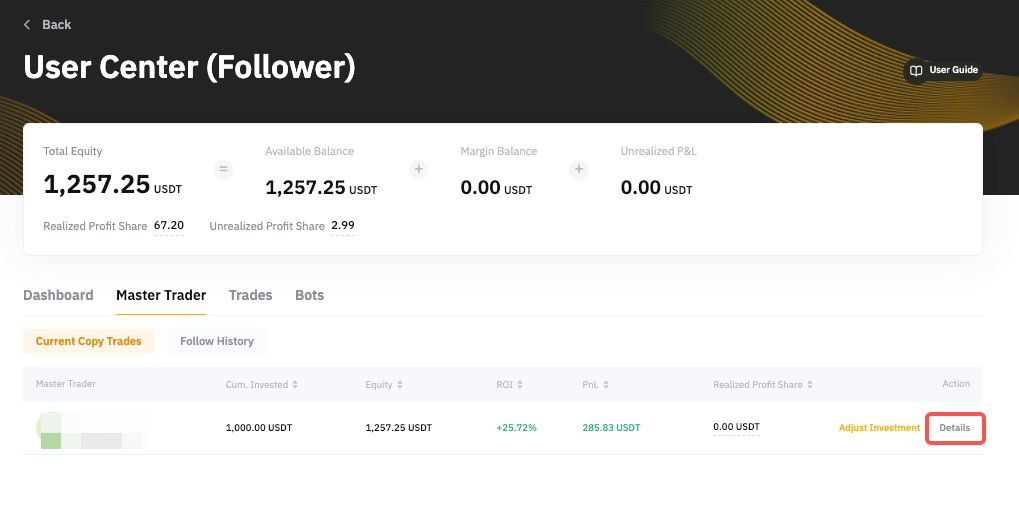
Step 3: Go to the Copy Trading Classic Settings page and you will be able to see the Copy Settings for USDT Perpetual Trades.
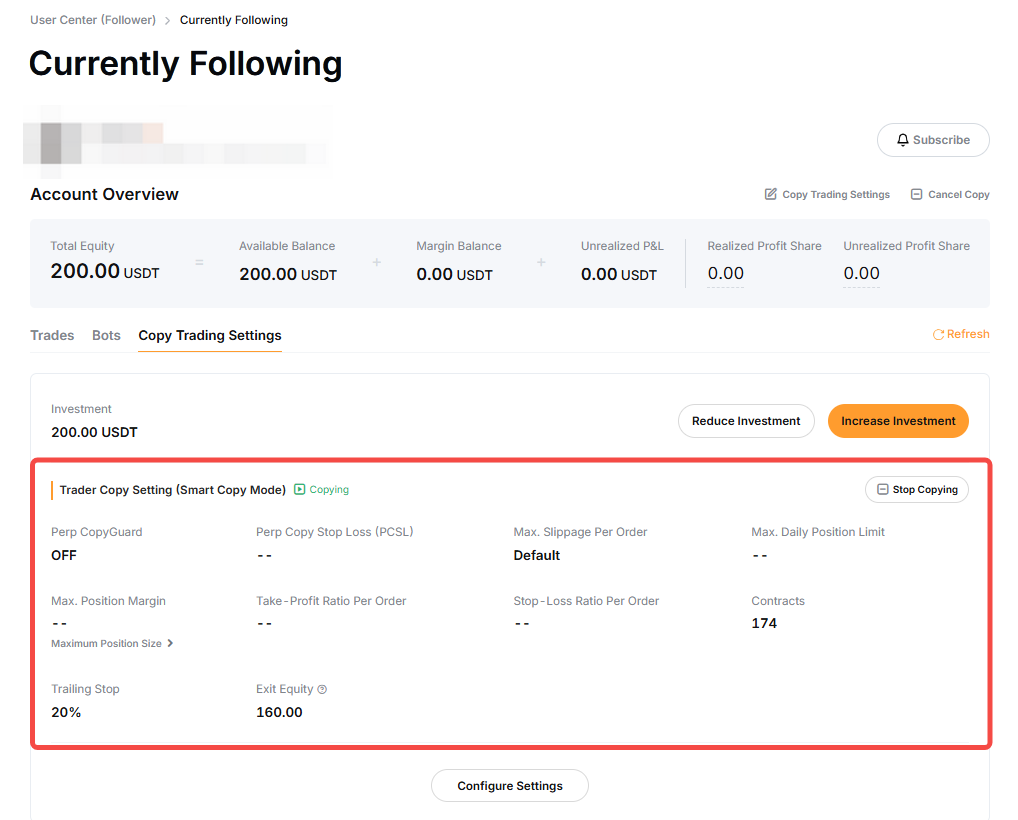
To reset the parameters of a copied item, simply click on the Start/Stop Copying button on the right-hand side of the respective items. If you want to configure the copy settings, you can click on the Configure Settings button after you start copying.
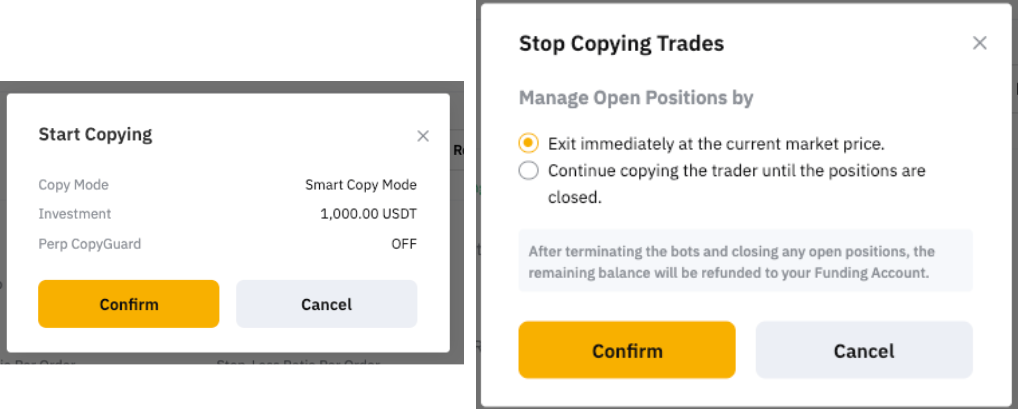
You can click on the Configure Settings button at the bottom of the page to reset your copy settings. Please note that if the Master Trader has enabled Forced Sync under SyncMaster, you will not be able to customize the parameters under More Settings.
Switch Copy Mode, Margin Mode and Leverage Settings
Copy Mode: Currently, the Copy Mode Switch is not supported while actively following a Master Trader. To change the copy mode, you will need to cancel the copy of the Master Trader and proceed to initiate a new copy with the desired mode. Please note that following the same Master Trader again may not be possible if all slots are occupied.
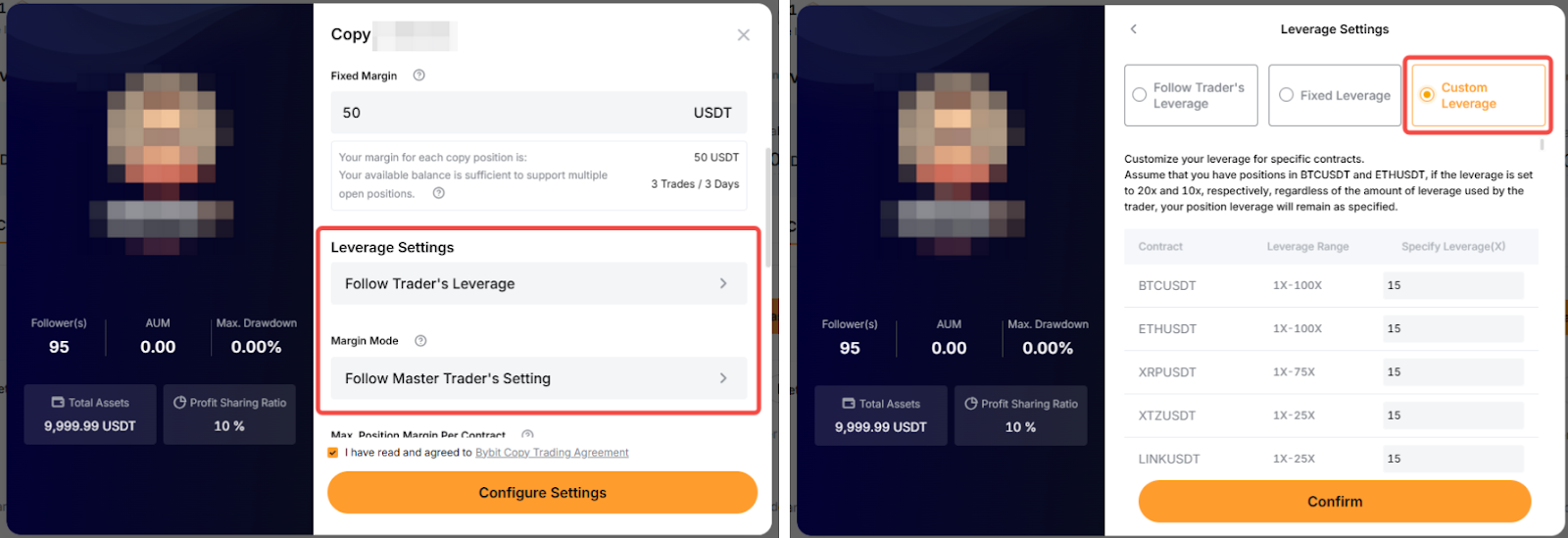
Margin Mode and Leverage Settings: To change the margin mode or leverage, you can refer to the steps above on how to edit your copy trade settings. Leverage change does not apply to Smart Copy mode as you will follow the Master Trader’s leverage.
Increase or Reduce Investment Amount
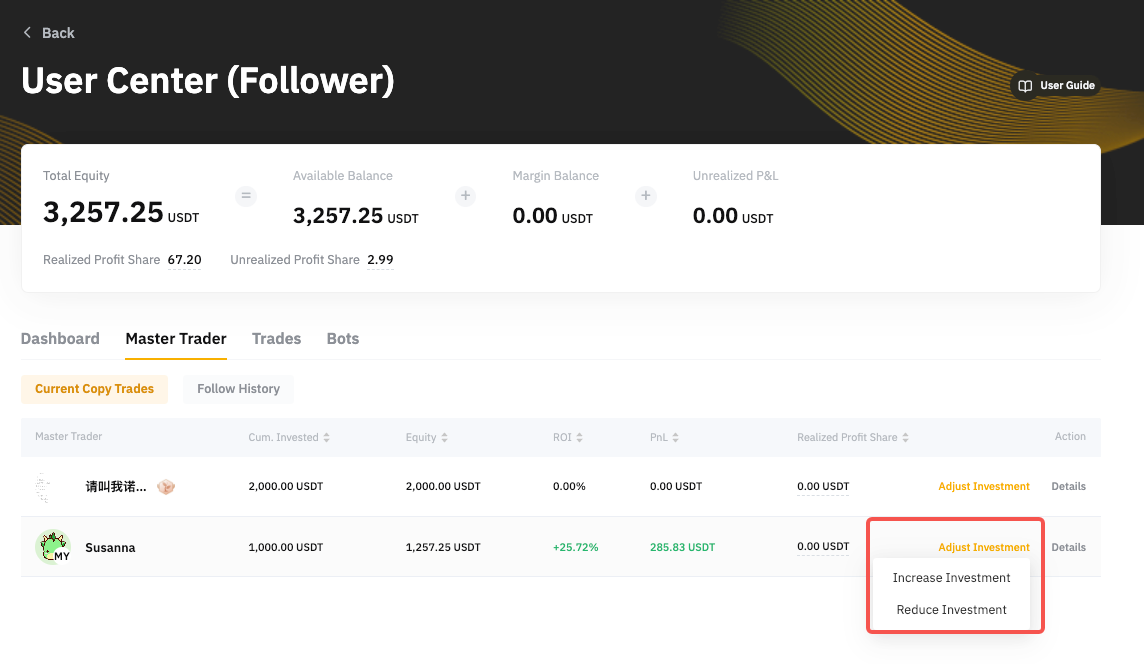
Step 1: Go to User Center (Follower) → Master Traders → Adjust Investment. Then, click on Increase Investment or Reduce Investment.
Notes:
— Generally, the minimum investment amount for Copy Trading Classic is 100 USDT. However, your Master Trader may set a higher minimum required investment amount. Hence, you will not be able to reduce your investment to lower than 100 USDT or the amount required by your Master Trader.
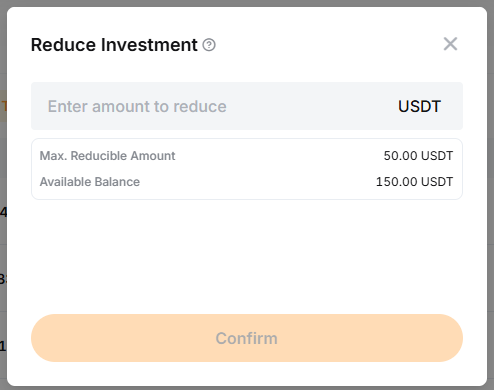
— You will be able to see the Max. Reducible Amount on the Reduce Investment window.
Set TP/SL
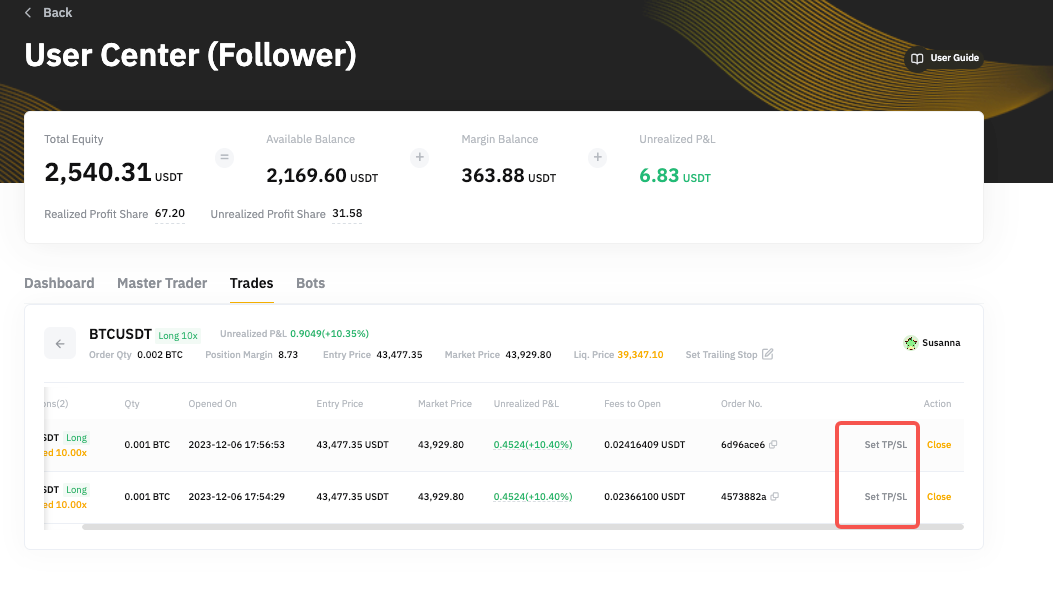
To set a TP/SL for your USDT Perpetual orders, go to User Center (Follower) → Trades → Open Position → Details. Click on Set TP/SL and you can enter your desired Take Profit or Stop Loss price. You can also select the reference price to trigger your TP/SL.
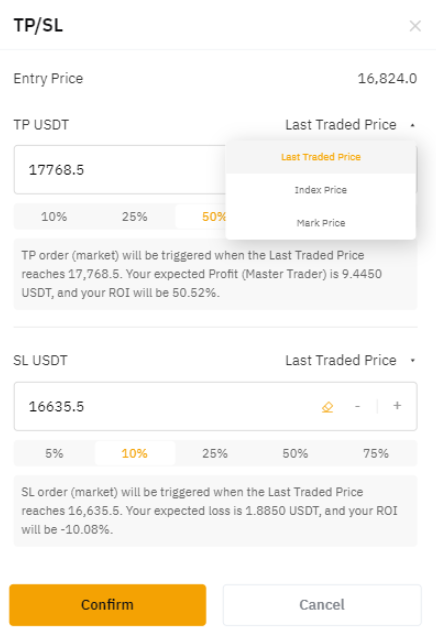
The percentage bar below the price refers to the ROI to be achieved. For example, Follower A has selected the 10% for Stop Loss and chose the Last Traded Price as the reference price. The system has automatically calculated $16,635.5 as the Stop Loss price. This means that when the Last Traded Price reaches $16,635.5, the SL order will be triggered and their ROI will be approximately -10%.
Close Your Positions
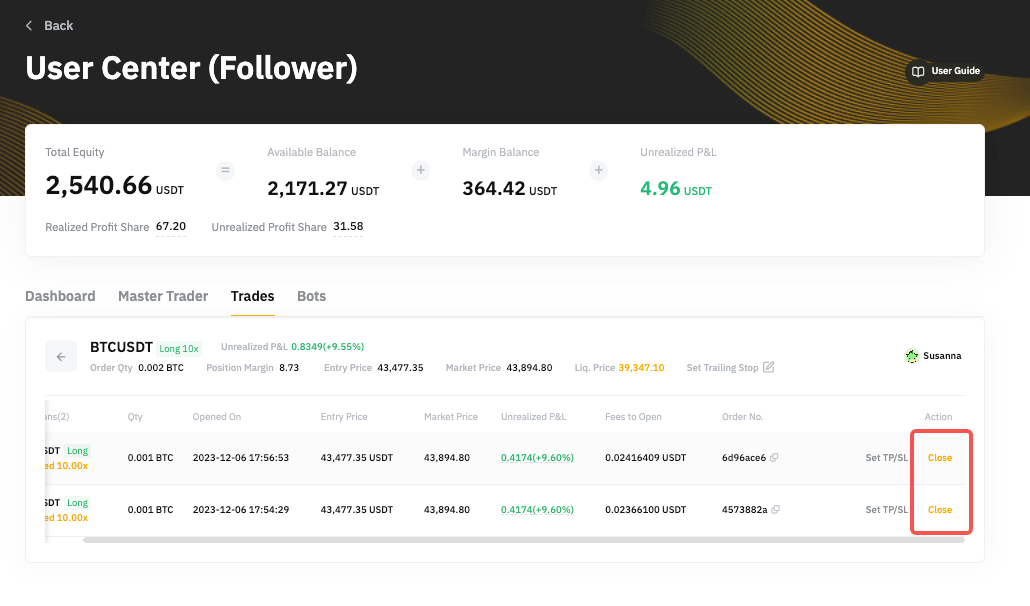
To close an order manually, go to User Center (Follower)→ Trades → Open Position → Details. You will see the order placed for that position and you can click on Close to close the respective order. The order will be exited via a Market Order.
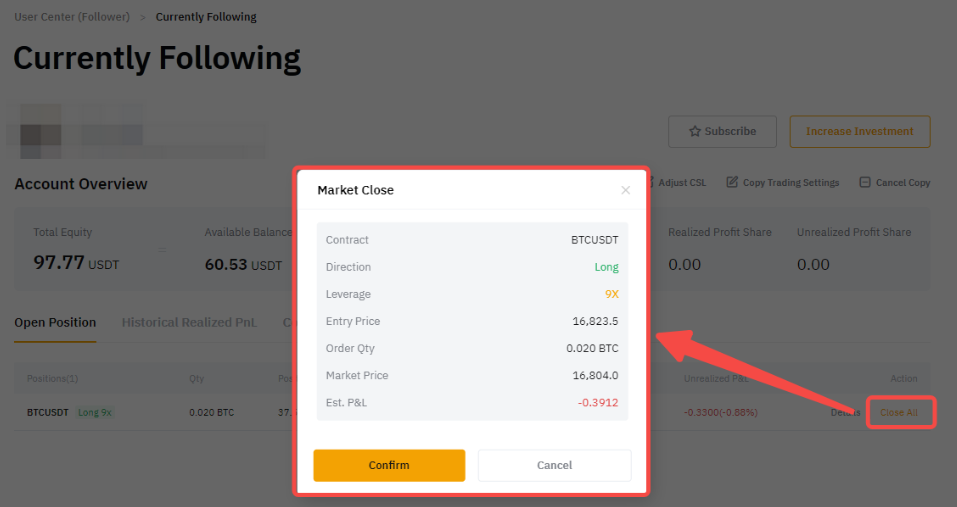
If you want to close the entire position under your Master Trader, please go to User Center (Follower) → Trades → Open Position → and click on Close All to close the entire position at market price.
In the Market Close window, you can see the position details before you confirm to close the position. The Est. P&L for Long Position is calculated by the following formula:
Est. P&L = Contract Qty x (Last Traded Price - Entry Price)
For Est. P&L on Short Position calculation, please visit this page.
Cancel Copy Your Master Trader
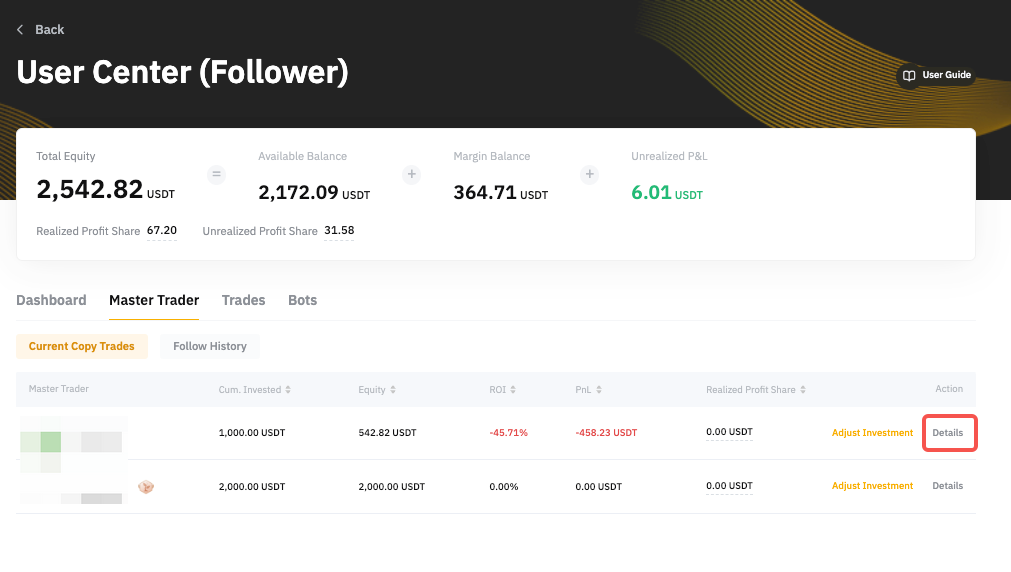
To cancel copying your Master Trader, go to User Center (Follower) → Master Trader → Current Copy Trades and click on the Details of the respective Master Trader you want to unfollow.
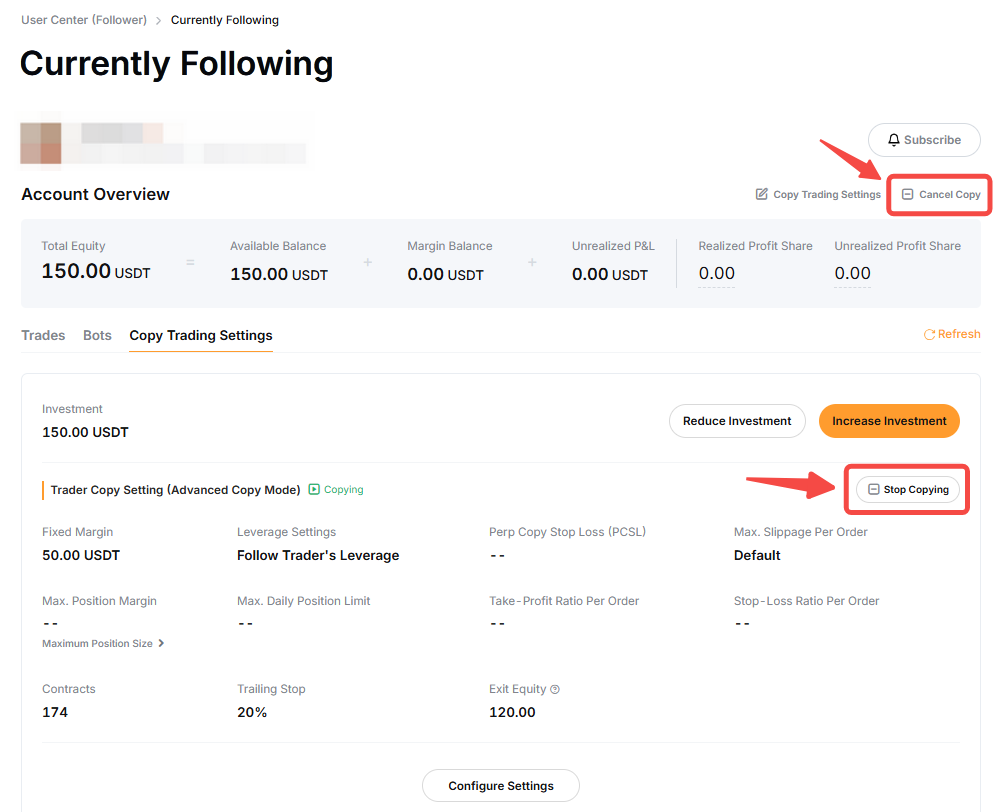
To cancel all copied items, navigate to the Copy Trading Classic Settings page and click Cancel Copy in the top right corner. If you wish to cancel specific items, you can click Stop Copying next to the Trader Copy Settings.
Once you cancel copying the Master Trader, you can choose one (1) of the following ways:
1. Close the remaining positions at the market price, or
2. Continue copying the trader until the positions are closed. During this time, only the closing signal from Master Trader to that position will be copied. Any new orders or changes made to the position by Master Trader will not be copied.
Once you have canceled the copy and all the positions are closed, the invested funds will be auto-transferred to your Funding Account regardless of which account you have used to invest the funds to copy.
If you want to re-copy certain items, just click on Start Copying from the Copy Trading Classic Settings page.